> For the complete documentation index, see [llms.txt](https://help.openloyalty.io/llms.txt). Markdown versions of documentation pages are available by appending `.md` to page URLs; this page is available as [Markdown](https://help.openloyalty.io/gamification/leaderboards/creating-leaderboards.md).
# Creating Leaderboards
This article explains how leaderboards can be created and used in your loyalty program.
Adding a new leaderboard allows you to define the rules and timeframe for how members will be ranked in your loyalty program. This process involves setting up basic information, choosing the duration, specifying the metric that will be tracked, and optionally grouping and rewarding members.
## Step-by-step instructions
Follow these steps to set up a new leaderboard in your Open Loyalty environment:
{% stepper %}
{% step %}
**Go to the Leaderboards section**
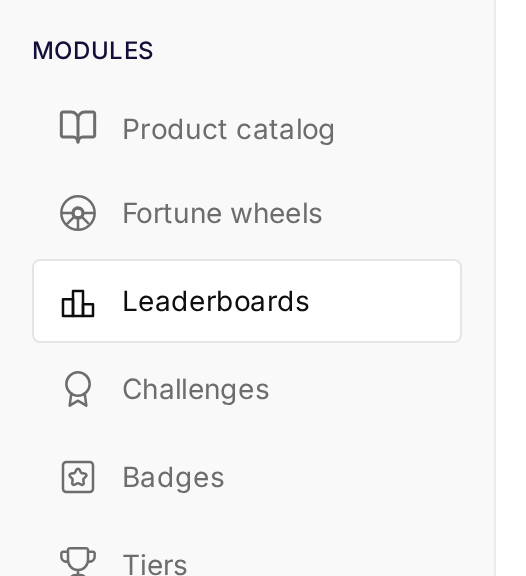
In the left-hand navigation, under **Modules**, click on **Leaderboards**.
{% endstep %}
{% step %}
**Add a new leaderboard**
On the Leaderboards page, click the **Create leaderboard** button (located in the top right corner).
The leaderboard is set up in a four-step wizard: **Leaderboard basic info**, **Leaderboard grouping**, **Rewarding cycle** and **Summary**. The first step has five sections: Title and description, Timeframe, Custom attributes, Tracked metric and Status.
{% endstep %}
{% step %}
**Basic Info**
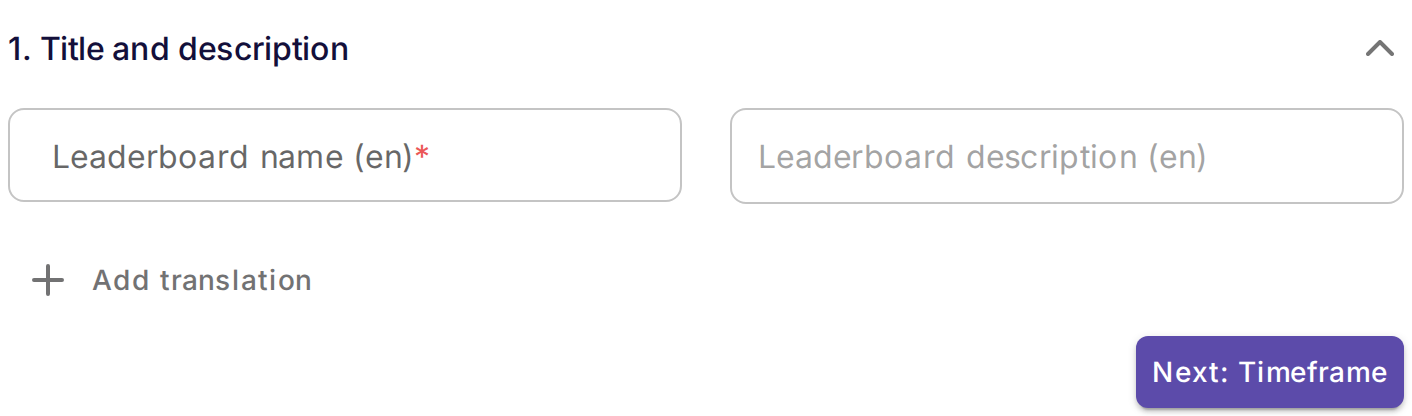
* **Title and description:** Enter a clear Leaderboard name (e.g., "Top Spenders," "Most Active Members") and an optional Leaderboard description to explain its purpose.
{% endstep %}
{% step %}
**Timeframe**
* **Start date:** Select the date when the leaderboard should begin tracking member activity.
* **End date (optional):** Choose an end date if you want the leaderboard to stop tracking activity after a specific period.
{% hint style="danger" %}
Leaderboards will not do a retroactive calculation, even if you set a date in the past!
{% endhint %}
{% endstep %}
{% step %}
**Custom Attributes**
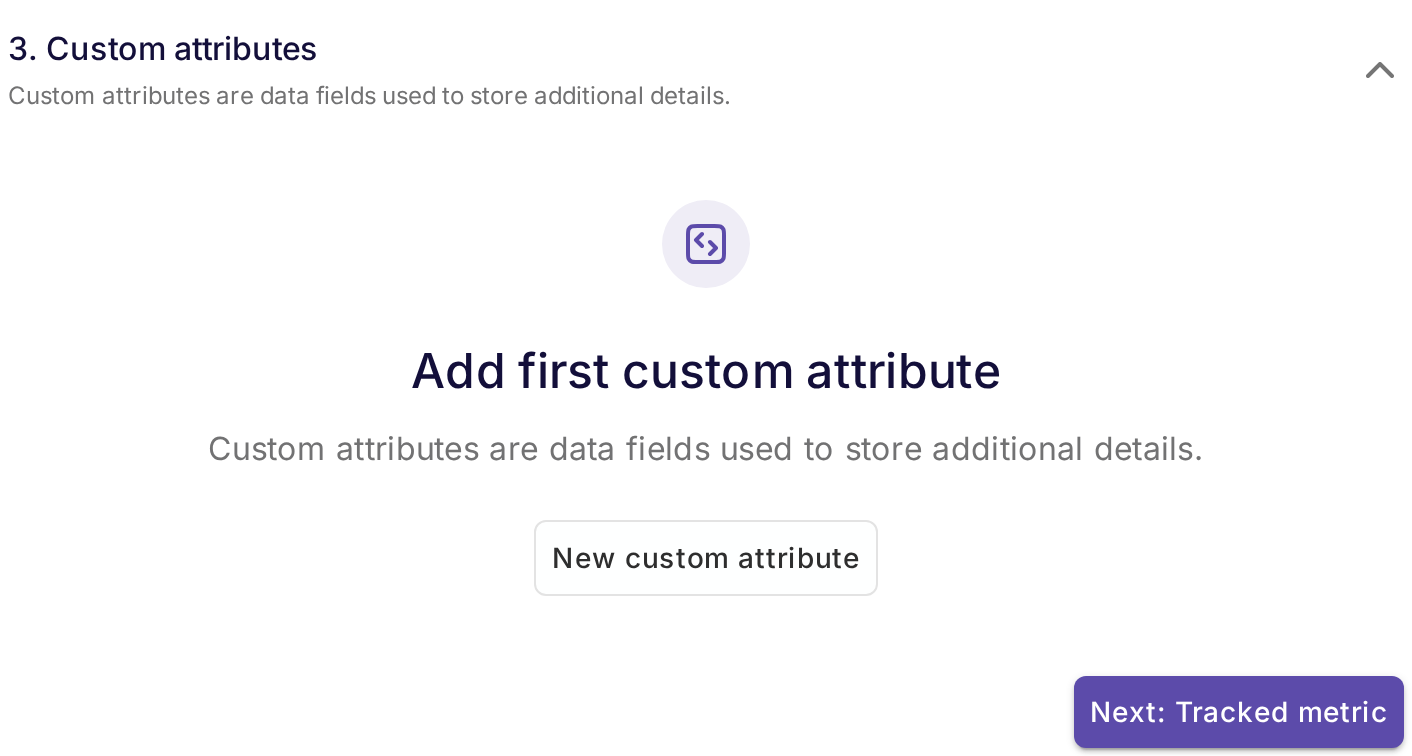
This section allows you to include custom data fields for additional details. For now, you can leave this as default unless you have specific custom attributes to add.
{% endstep %}
{% step %}
**Tracked Metric**
* Select the type of activity you want to measure and rank members by from the Metric dropdown (e.g., "Cumulative earned units in a wallet").
* If applicable, select the Wallet type.
{% endstep %}
{% step %}
**Status**
Toggle the Active switch to enable or disable the leaderboard. An active leaderboard will collect data.
{% endstep %}
{% step %}
**Leaderboard Grouping**
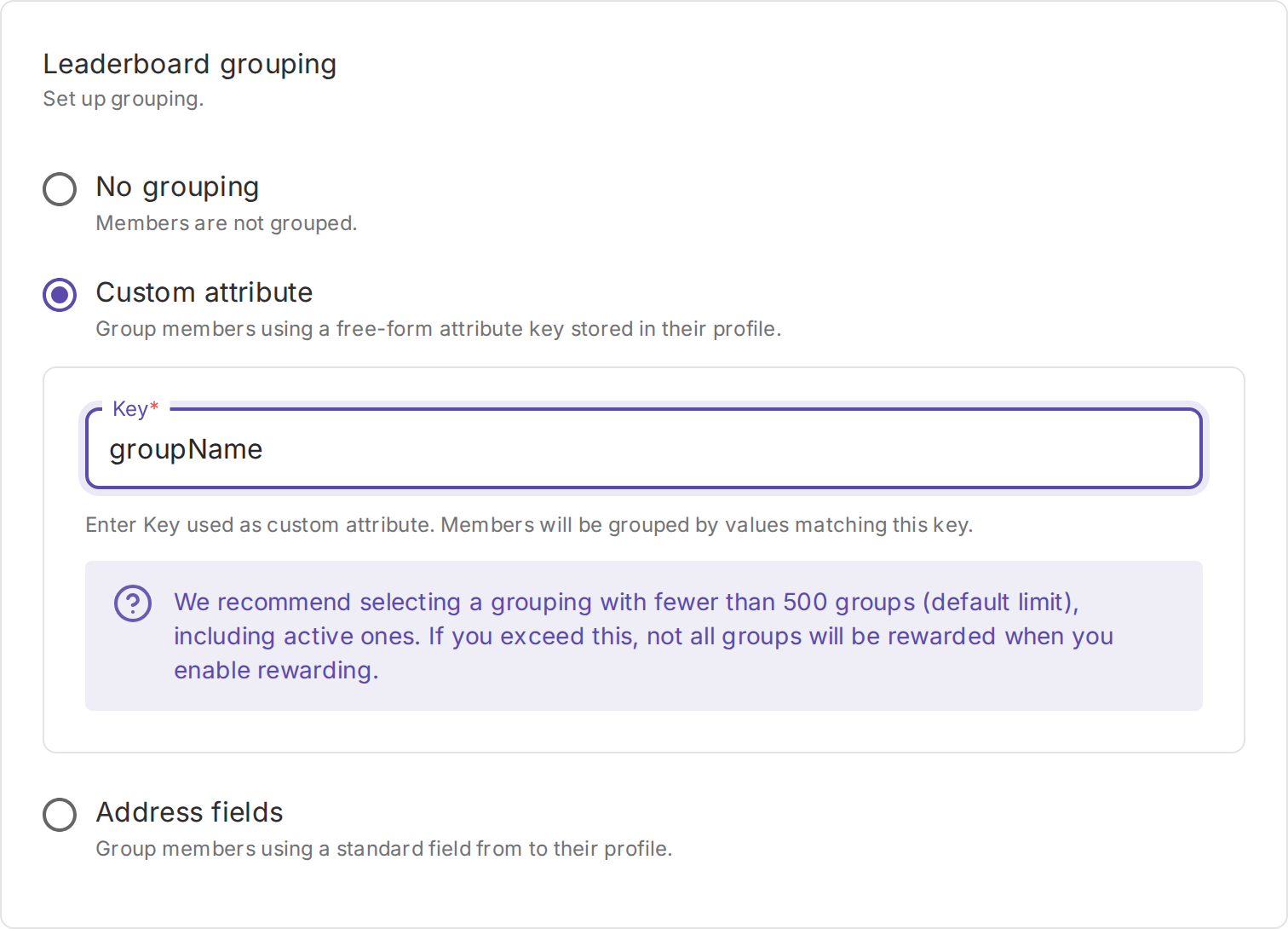
On the **Leaderboard grouping** step, optionally divide participants into independent sub-leaderboards based on a member attribute. Each group maintains its own Top-1000 ranking and, if a rewarding cycle is configured, its own reward distribution.
{% hint style="info" %}
Members with a missing or blank value for the selected grouping field will be filtered out from the leaderboard entirely.
{% endhint %}
Select one of the three grouping options:
**No grouping *****(default)***
All members compete together in a single unified ranking. No sub-groups are created.
**Custom attribute**
Group members by the value of a free-form attribute key stored in their profile.
* Enter the **Key** — the custom attribute key whose values define the groups. Members sharing the same value for this key are placed in the same sub-group.
{% hint style="warning" %}
We recommend selecting a grouping with fewer than 500 groups (default limit), including active ones. If you exceed this, not all groups will be rewarded when you enable rewarding.
{% endhint %}
**Address fields**
Group members by a standard address field from their member profile. Select the **Profile field** to group by:
* **Postal code**
* **City**
* **State**
* **Country**
{% hint style="warning" %}
We recommend selecting a grouping with fewer than 500 groups (default limit), including active ones. If you exceed this, not all groups will be rewarded when you enable rewarding.
{% endhint %}
{% endstep %}
{% step %}
**Rewarding Cycle (optional)**
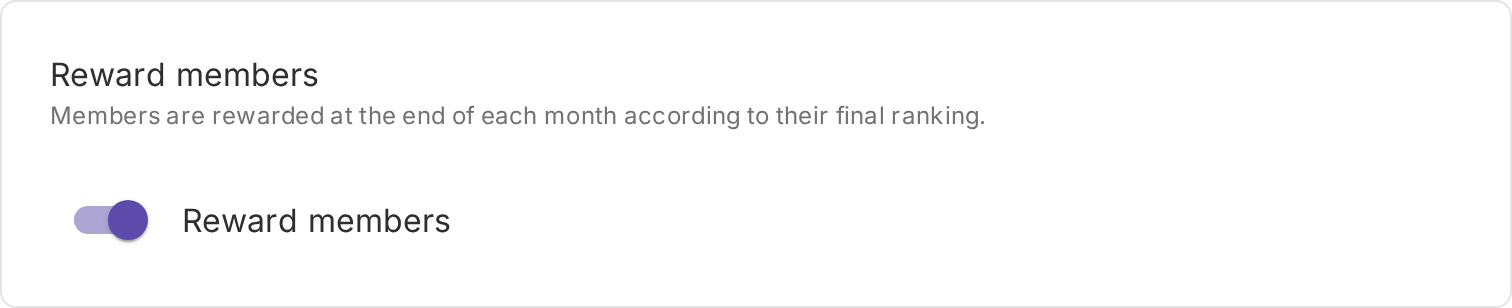
On the **Rewarding cycle** step, you can reward top-ranking members: switch on the **Reward members** toggle in the **Reward members** card. The **Reward logic** then appears on the same step.
{% hint style="info" %}
For more information on the rewarding cycle, please refer to this section of the User Guide: [Rewarding Cycle](/gamification/leaderboards/rewarding-cycle.md)
{% endhint %}
{% endstep %}
{% step %}
**Summary**
Review all your settings. If everything looks correct, click **Add leaderboard**.
{% endstep %}
{% endstepper %}
## Final tips
* **Currently, you can have up to 3 active leaderboards within an environment.**
* Members with the same tracked metric value will tie and appear in the same position on the leaderboard.
* Leaderboards are recalculated **every 4 hours.**
* Future updates will expand leaderboard capabilities, including the ability to target specific segments or tiers and introduce additional conditions.
---
# Agent Instructions
This documentation is published with GitBook. GitBook is the documentation platform designed so that both humans and AI agents can read, navigate, and reason over technical content effectively. Learn more at gitbook.com.
## Querying This Documentation
If you need additional information that is not directly available in this page, you can query the documentation by asking a question.
Perform an HTTP GET request on the following URL with the `ask` and `goal` query parameters:
```
GET https://help.openloyalty.io/gamification/leaderboards/creating-leaderboards.md?ask=&goal=
```
`ask` is the immediate question: it should be specific, self-contained, and written in natural language.
`goal` is what the user is ultimately trying to achieve, the reason they need the answer. Sharing it helps GitBook give you a better, more relevant answer. A goal is most helpful when it describes the outcome the user wants rather than restating the question. For example, with `ask=how do I create an API token`, a goal like `automate deployments from our CI pipeline` lets GitBook tailor the answer to that use case.
The response will contain a direct answer to the question and relevant excerpts and sources from the documentation.
Use this mechanism when the answer is not explicitly present in the current page, you need clarification or additional context, or you want to retrieve related documentation sections.