> For the complete documentation index, see [llms.txt](https://help.openloyalty.io/llms.txt). Markdown versions of documentation pages are available by appending `.md` to page URLs; this page is available as [Markdown](https://help.openloyalty.io/implementation-guide/faq/adding-a-tenant-and-giving-an-admin-access-to-it.md).
# Adding a tenant and giving an admin access to it
Admins only see the tenants their role includes. A new tenant is not added to existing roles automatically (only Superadmin roles see every tenant), so after creating a tenant you give access to it through a role, then assign that role to the admins who need it.
### 1. Open the tenant list
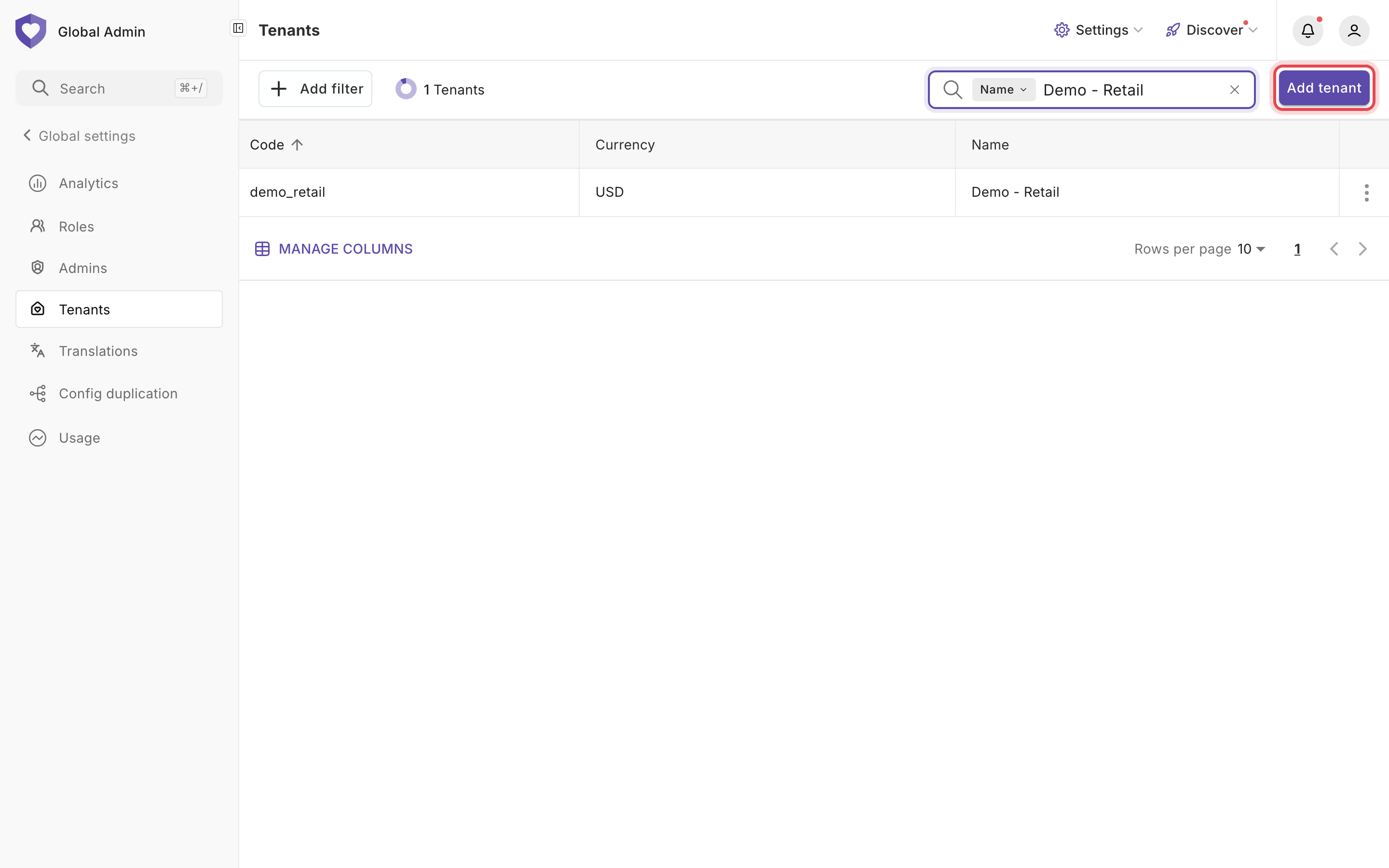
Go to **Global settings → Tenants** and click **Add tenant**.
### 2. Create the tenant
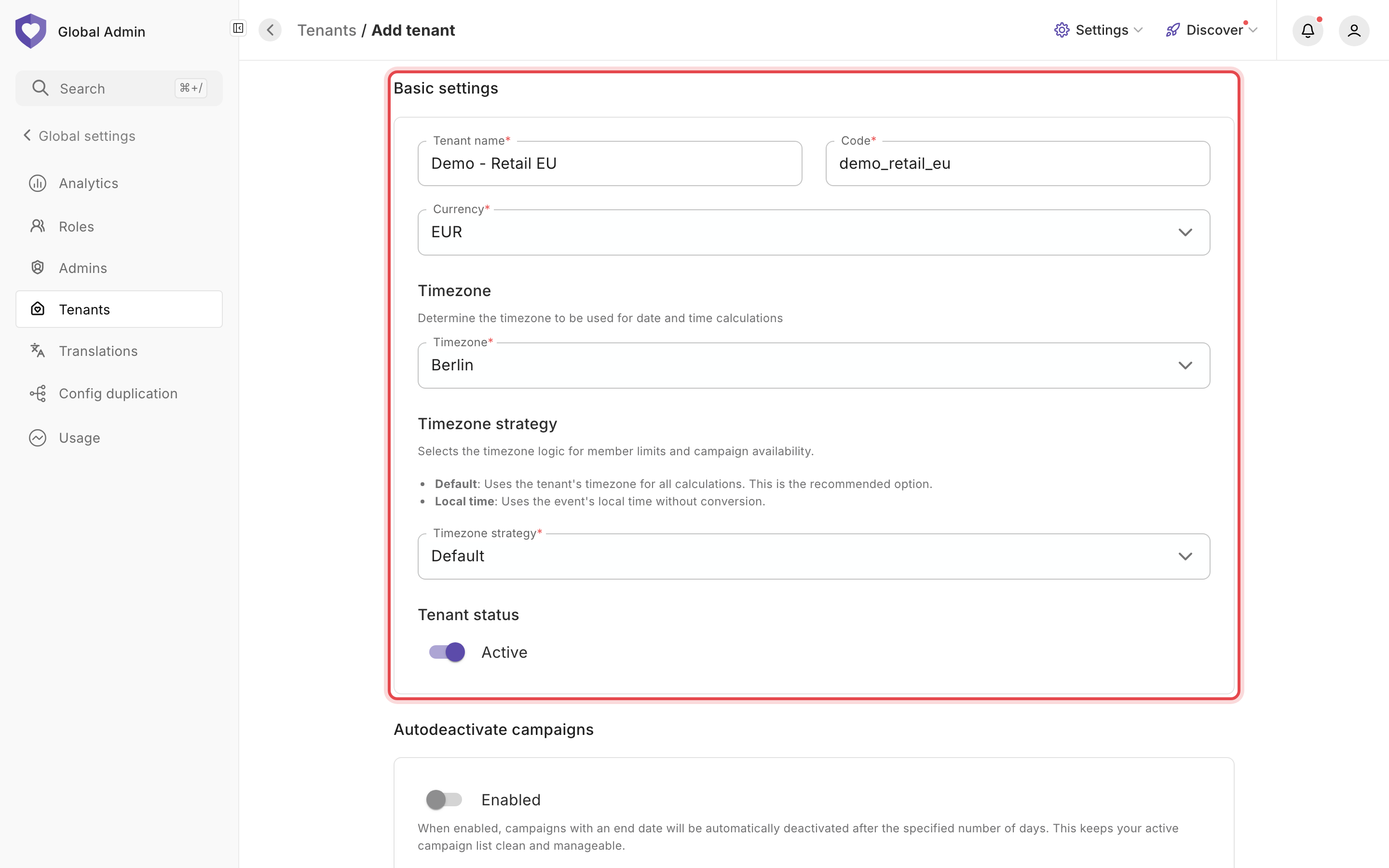
Enter the tenant name and a unique code (it can't be changed later), choose the currency and timezone, switch the tenant to **Active**, and click **Add tenant**.
### 3. The new tenant is ready
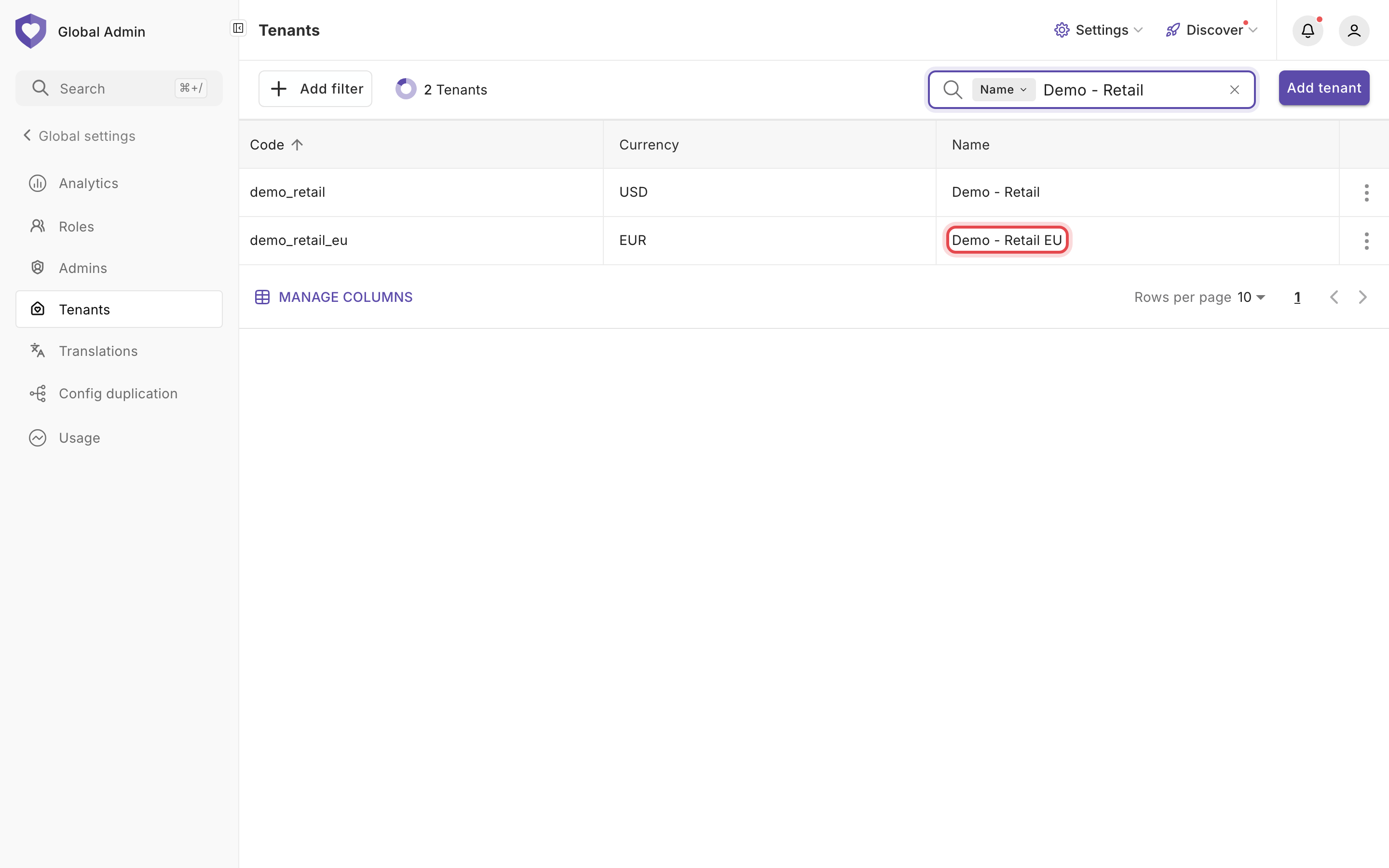
**Demo - Retail EU** now appears in the tenant list.
### 4. Existing roles don't include the new tenant
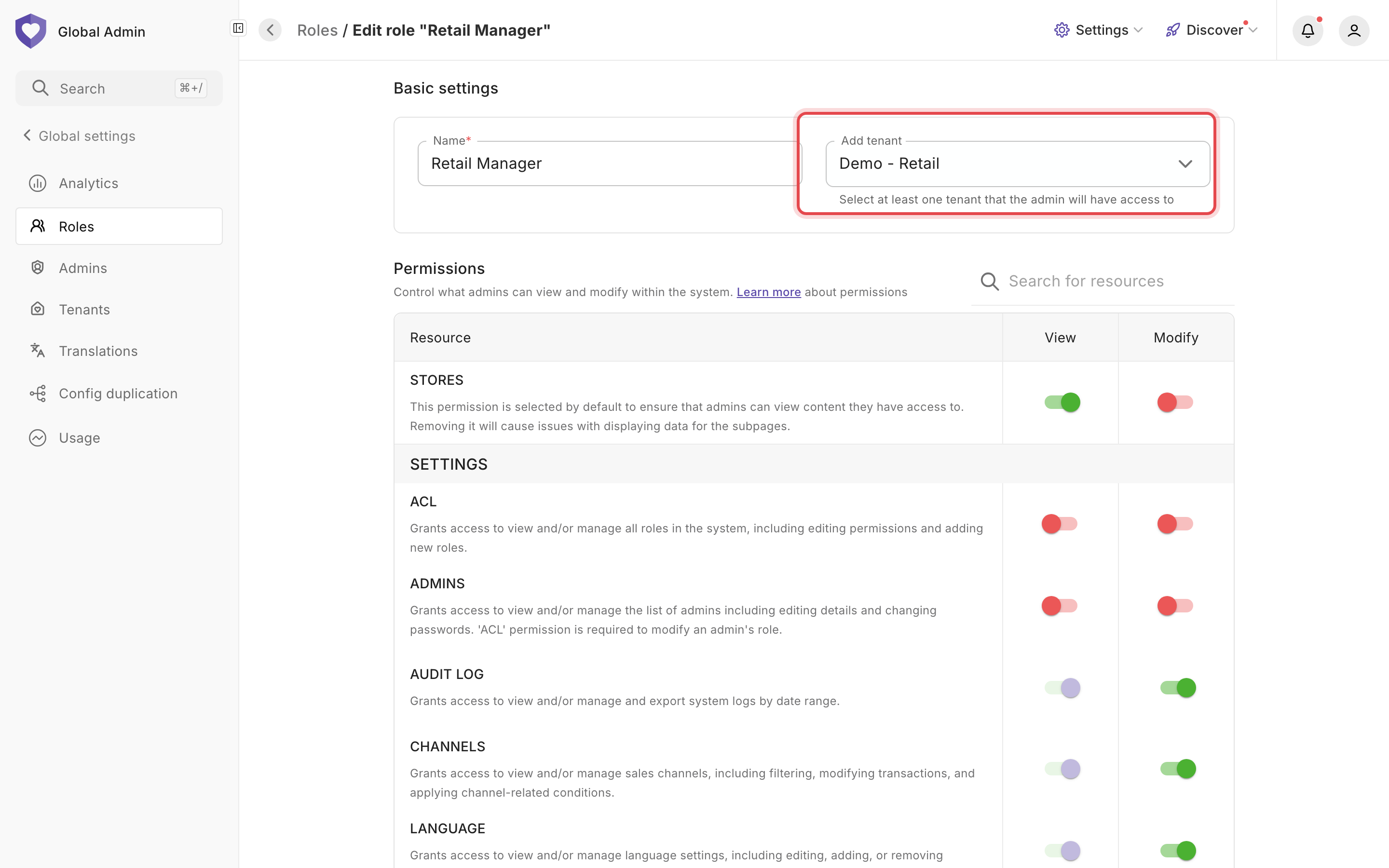
Open an existing role, here **Retail Manager**, with **Edit**: its **Add tenant** field still lists only the tenants it had before. Admins with this role won't see **Demo - Retail EU** until it's added to a role they have.
### 5. Duplicate a role
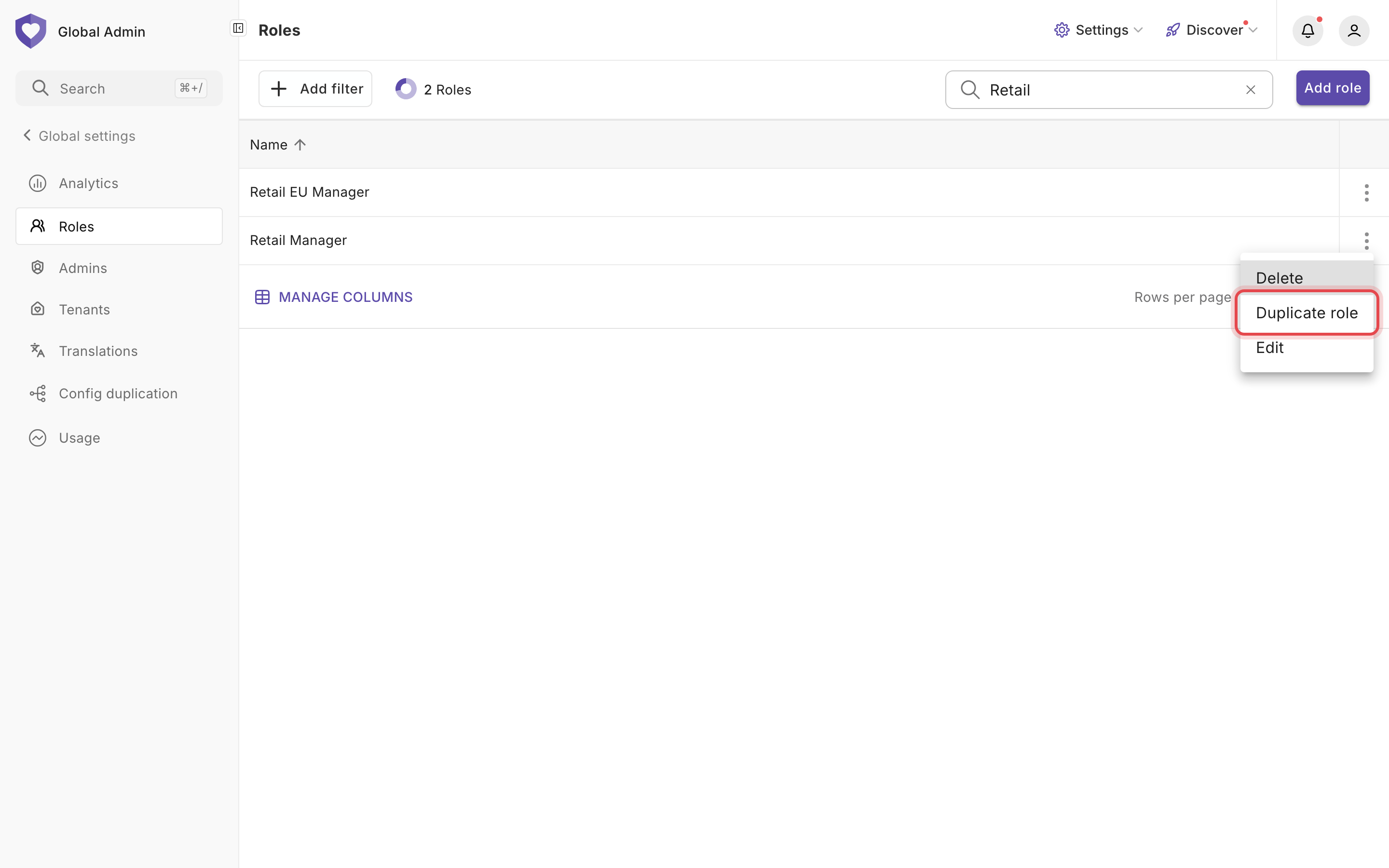
To give the same permissions for the new tenant, duplicate an existing role: in **Global settings → Roles**, open the role's menu and choose **Duplicate role**. (Or click **Add role** to start from scratch.)
### 6. Name the new role
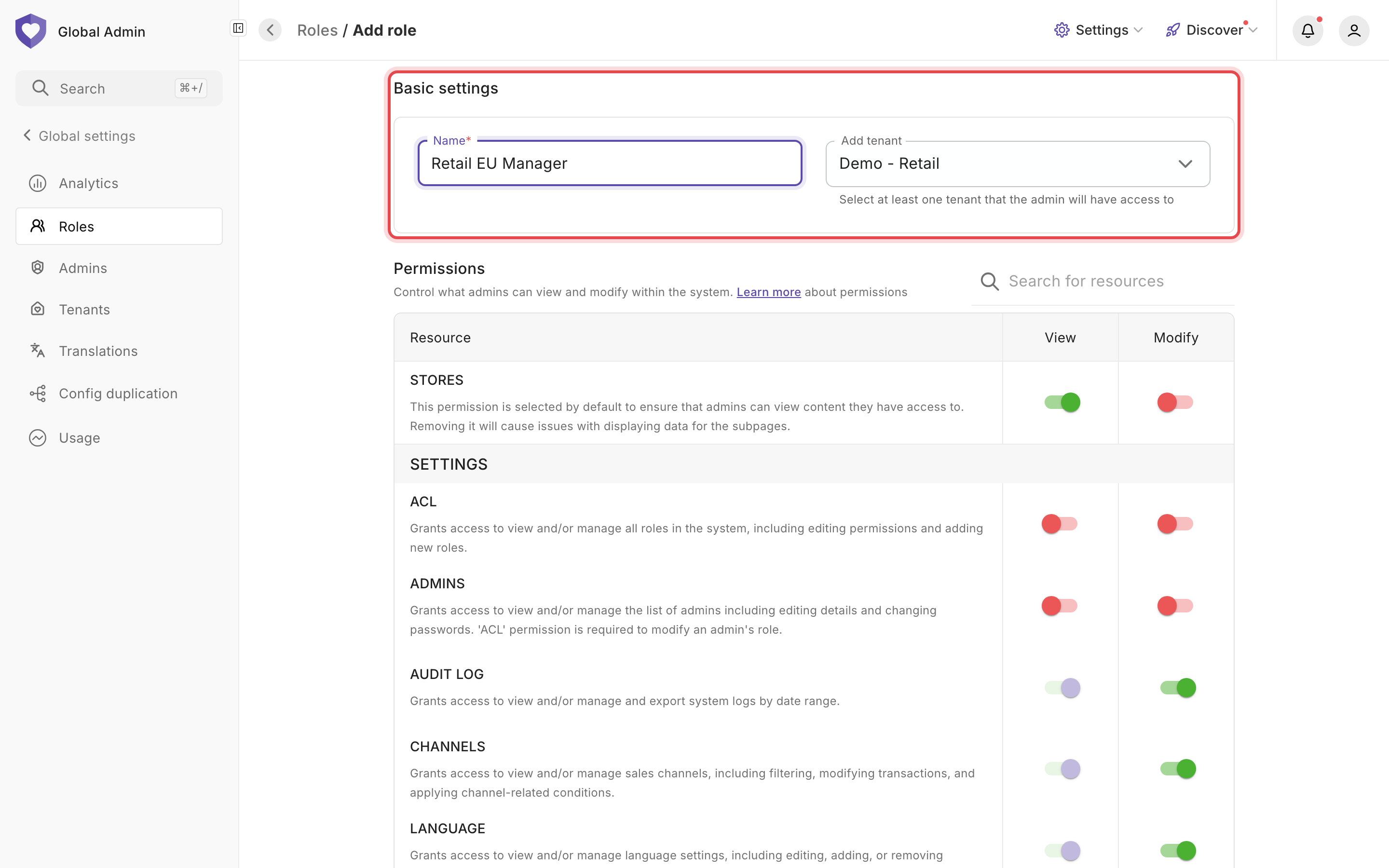
The duplicate starts with the original role's permissions and tenants. Give it a name.
### 7. Add the new tenant to the role
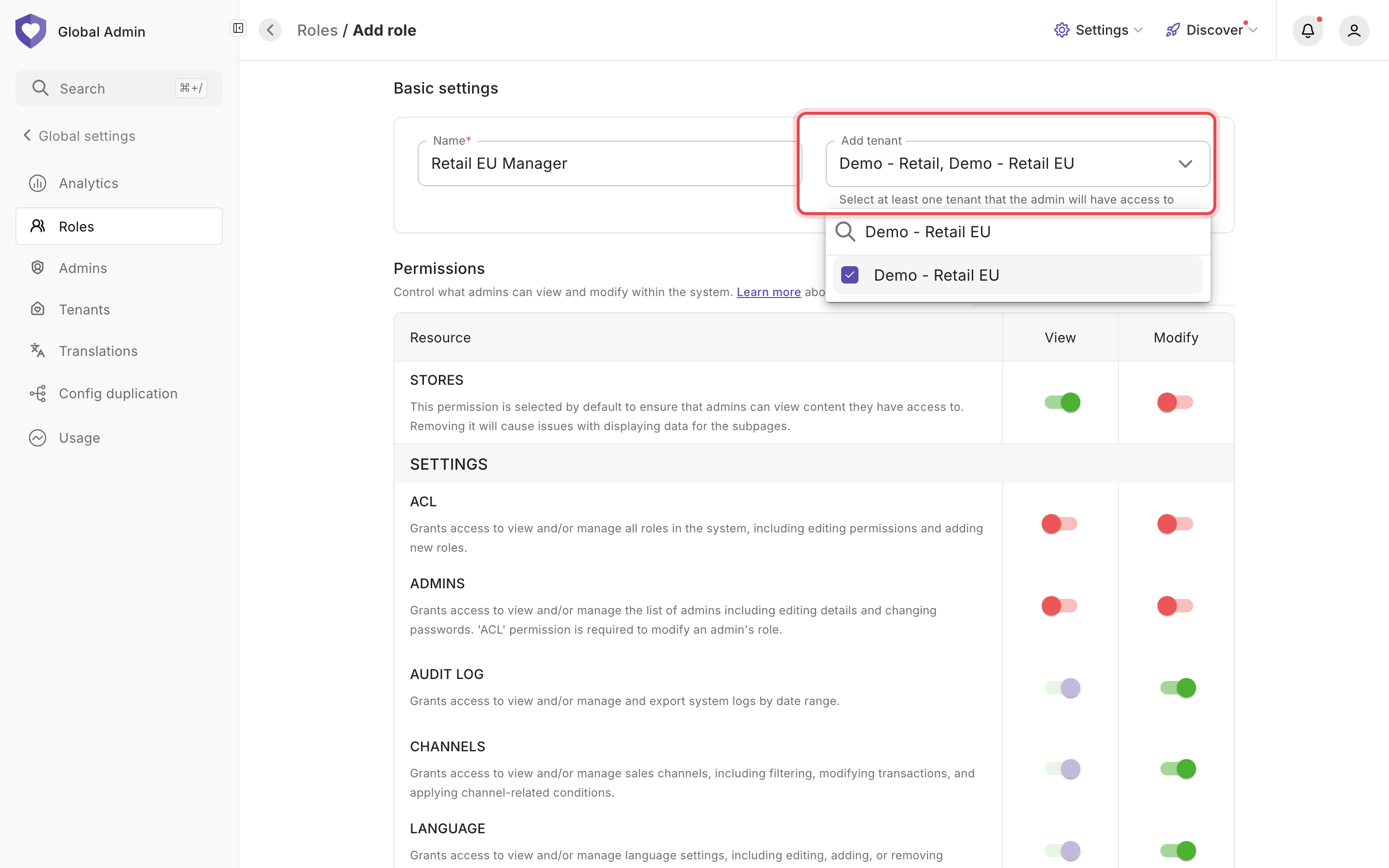
In **Add tenant**, select **Demo - Retail EU** alongside the tenants the role already covers (remove any it shouldn't), then click **Add role**.
### 8. The role is ready
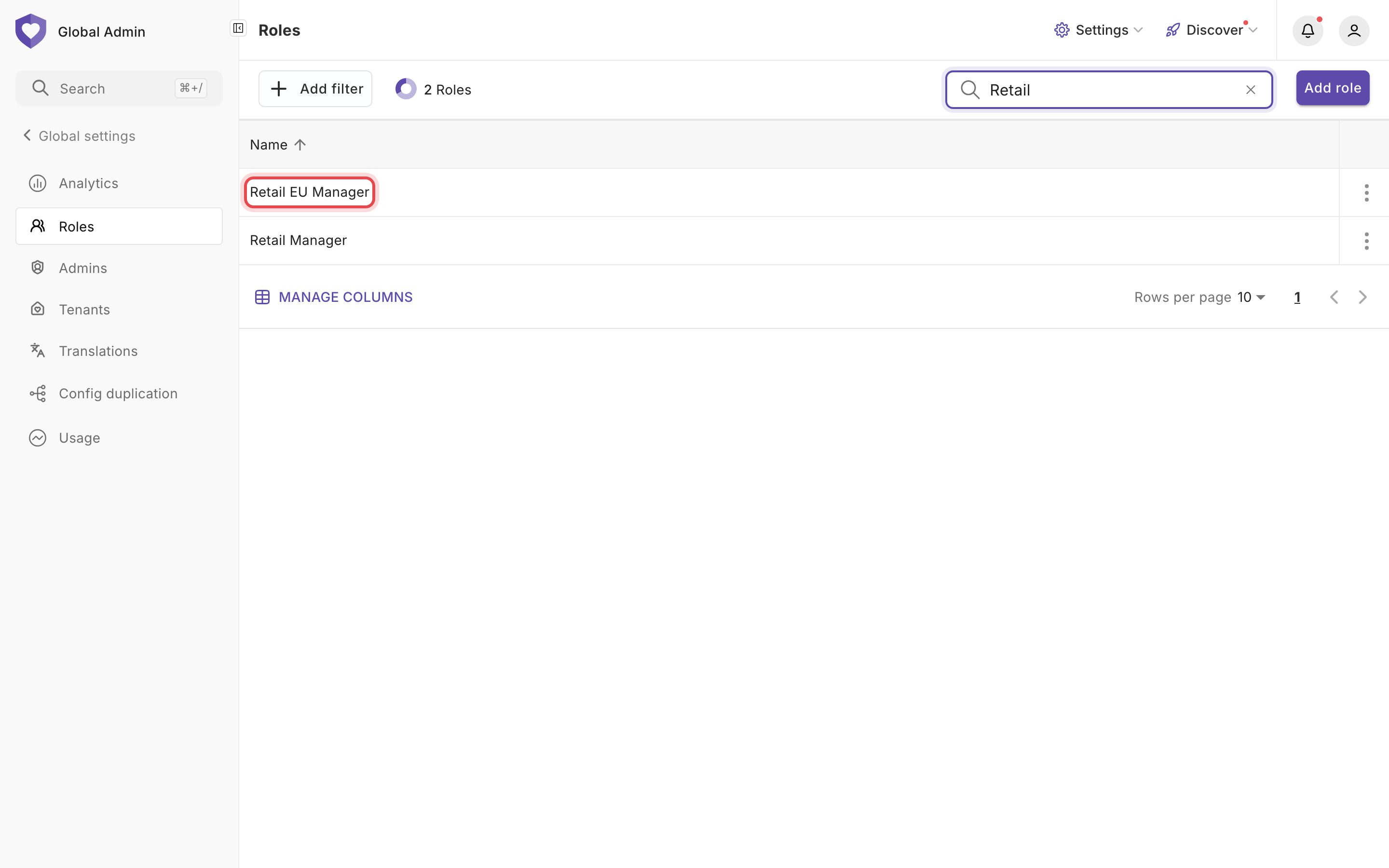
**Retail EU Manager** is listed with the other roles.
### 9. Assign the role to an admin
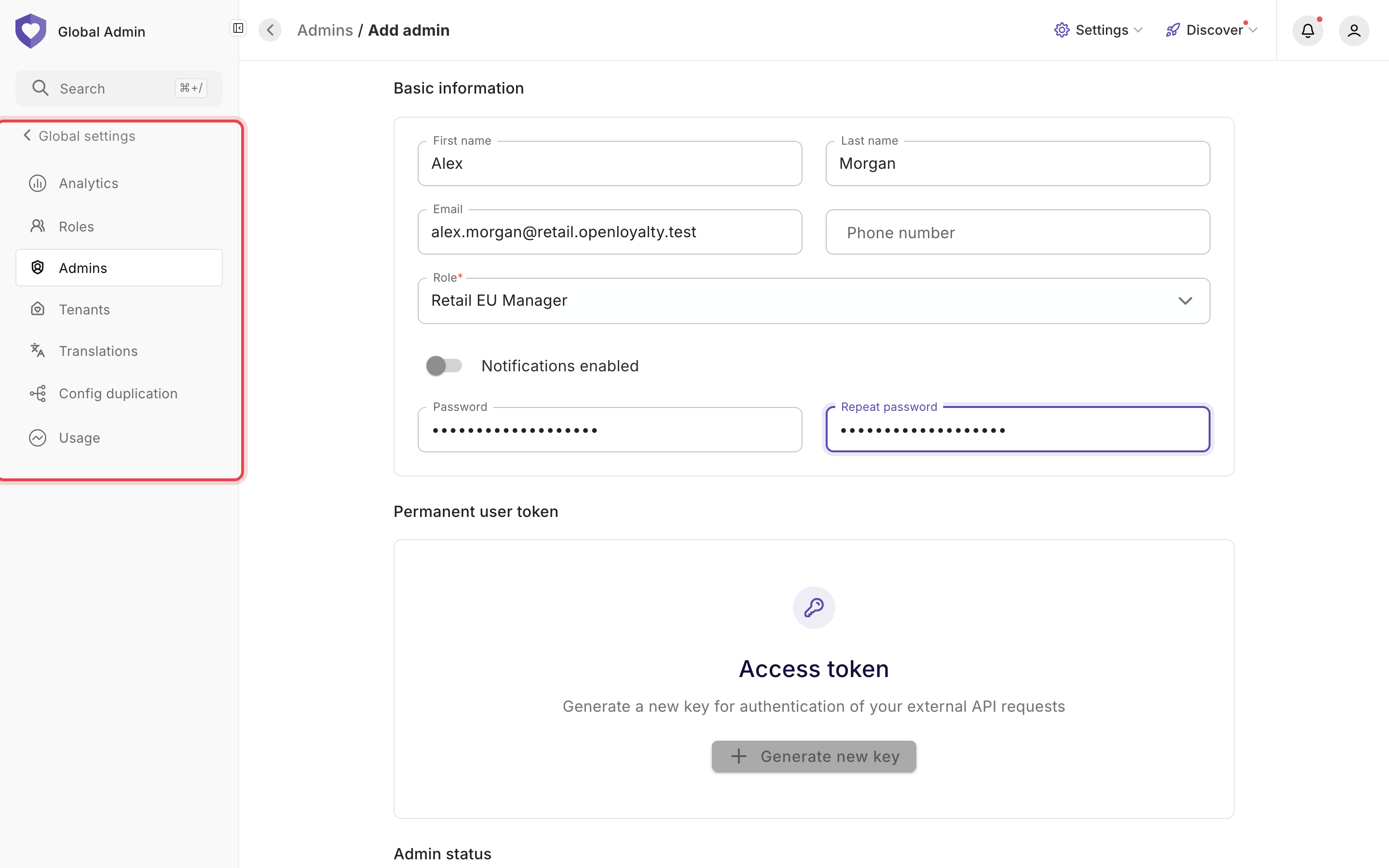
Go to **Global settings → Admins** and click **Add admin** (or edit an existing admin). Fill in their details and, in **Role**, select **Retail EU Manager**.
### 10. Activate the admin
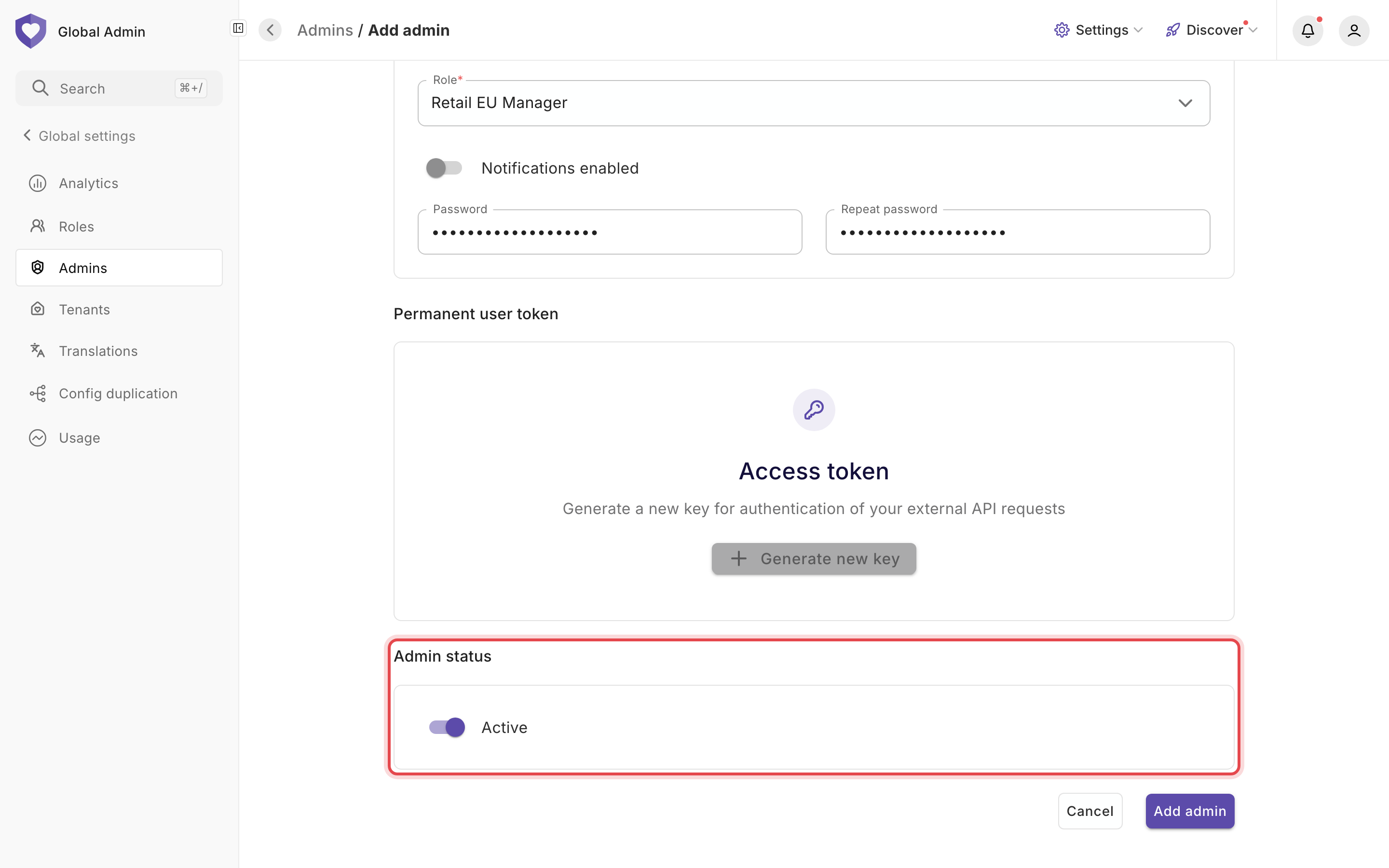
Under **Admin status**, switch the admin to **Active**, then click **Add admin**.
### 11. The admin now has access
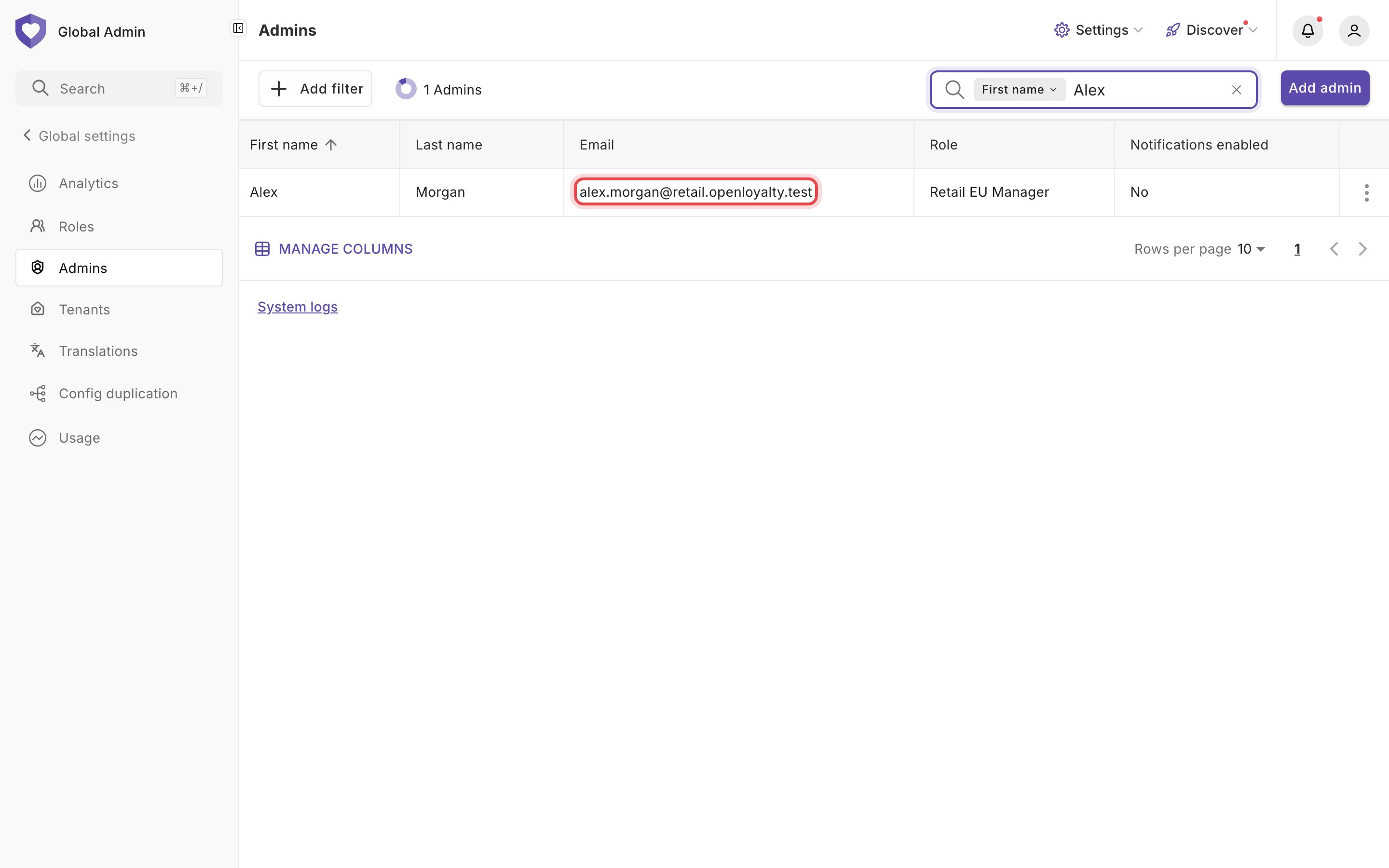
**Alex Morgan** can now sign in and switch to **Demo - Retail EU**.
---
# Agent Instructions
This documentation is published with GitBook. GitBook is the documentation platform designed so that both humans and AI agents can read, navigate, and reason over technical content effectively. Learn more at gitbook.com.
## Querying This Documentation
If you need additional information that is not directly available in this page, you can query the documentation dynamically by asking a question.
Perform an HTTP GET request on the following URL with the `ask` and `goal` query parameters:
```
GET https://help.openloyalty.io/implementation-guide/faq/adding-a-tenant-and-giving-an-admin-access-to-it.md?ask=&goal=
```
`ask` is the immediate question: it should be specific, self-contained, and written in natural language.
`goal` is what the user is ultimately trying to achieve, the reason they need the answer. Sharing it helps GitBook give you a better, more relevant answer. A goal is most helpful when it describes the outcome the user wants rather than restating the question. For example, with `ask=how do I create an API token`, a goal like `build a script that syncs our docs to a CMS` lets GitBook tailor the answer to that use case.
The response will contain a direct answer to the question and relevant excerpts and sources from the documentation.
Use this mechanism when the answer is not explicitly present in the current page, you need clarification or additional context, or you want to retrieve related documentation sections.