> For the complete documentation index, see [llms.txt](https://help.openloyalty.io/llms.txt). Markdown versions of documentation pages are available by appending `.md` to page URLs; this page is available as [Markdown](https://help.openloyalty.io/members-and-activity/members/member-list/managing-members.md).
# Managing Members
Edit member profiles, manage custom attributes, assign tiers, and adjust balances or achievements.
## Overview
Use the member profile to maintain member data and loyalty status.\
You can edit profile details, manage custom attributes, assign a tier, and add unit transfers.
### Edit a member profile
Open a member from **Members → All members**.\
You can also open a profile directly from a member record.
{% stepper %}
{% step %}
### Open the profile editor
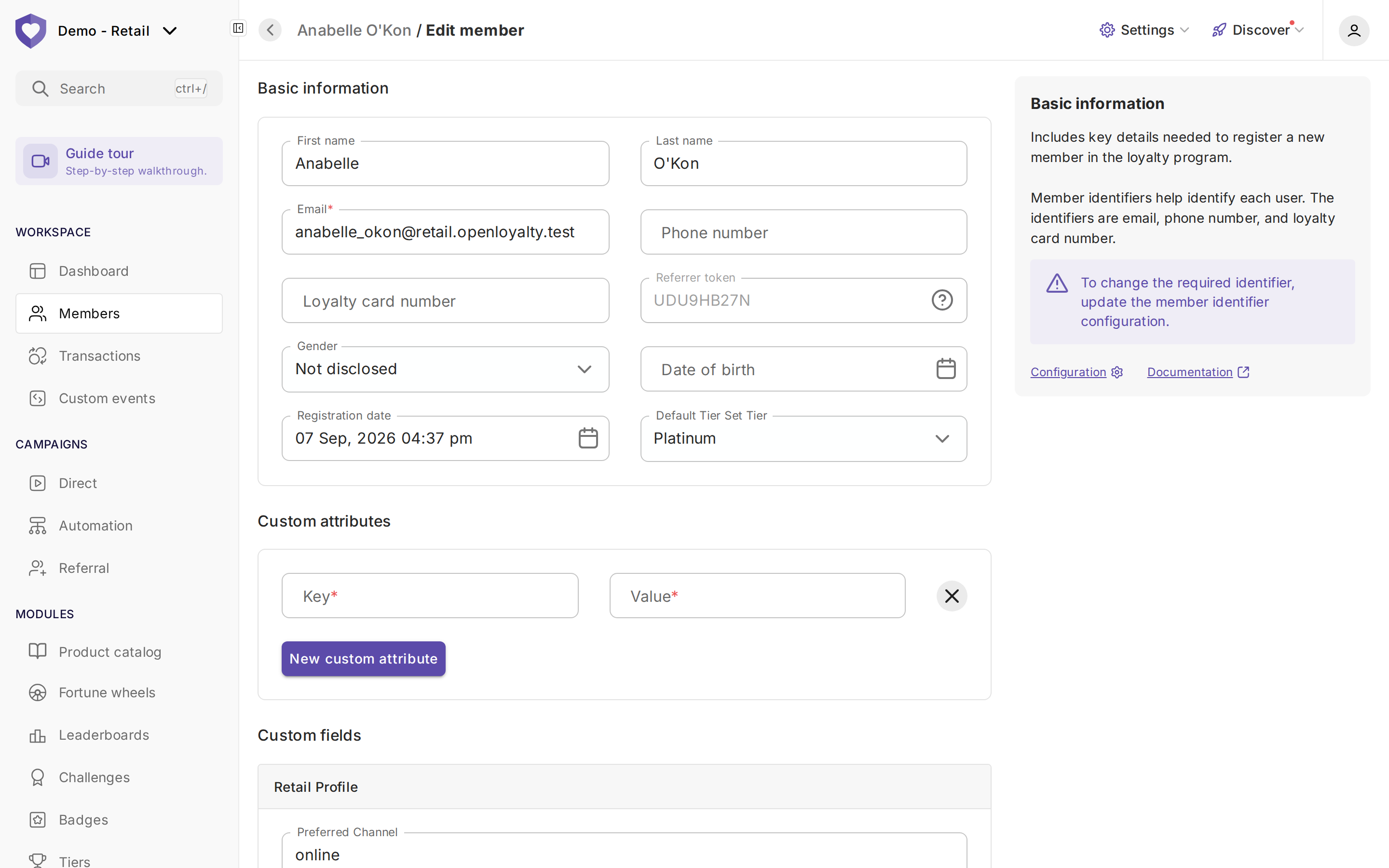
* In the members list, open the member's context menu and click **Edit profile**.
* On the member profile, click the pencil button next to **Actions**.
{% endstep %}
{% step %}
### Update member details
Edit the required fields, such as name, email, phone number, gender, or birth date.
{% endstep %}
{% step %}
### Save changes
Click **Save**.
{% endstep %}
{% endstepper %}
### Manage custom attributes
Custom attributes store additional member data as key-value pairs.\
Use them for preferences, external identifiers, or other program-specific details.
{% stepper %}
{% step %}
### Add an attribute
Click **New custom attribute** in the profile editor.
{% endstep %}
{% step %}
### Enter the key and value
Provide the attribute **Key** and **Value**, then save the profile.
{% endstep %}
{% endstepper %}
### Assign a tier manually
Set a member's tier during account creation or profile editing, or from the profile's **Actions → Assign to tier**.
1. Select the member and click **Edit profile**.
2. Select the required **Tier**.
3. Click **Save**.
{% hint style="info" %}
Manual assignment prevents tier downgrades.\
Campaigns and other configured rules can still upgrade the member.
When manual assignment ends, normal upgrade and downgrade rules apply.
You can only lock a member in a tier higher than their calculated one. Assigning a lower tier is accepted but has no effect.
{% endhint %}
A manually assigned tier is shown as a tooltip on the **Current progress** help icon in the member's **Tiers** section (no next recalculation date is shown). To end it, use **Actions → Remove manually assigned tier**.
### Add a unit transfer
Use unit transfers for one-off adjustments.\
For example, compensate a delivery delay or correct a member balance.
Start from the member profile or **Members → All members**.
{% stepper %}
{% step %}
### Start a transfer
From a member profile, click **Actions → Add units transfer** (or **Deduct units transfer**).
The profile's **Actions** menu lists **Add units transfer**, **Deduct units transfer**, **Block units**, **Anonymize profile**, **Assign to tier**, **Change password**, **Deactivate account**, **Remove profile**, **Remove referrer** and **Grant badge**.
{% endstep %}
{% step %}
### Set the transfer type
Select **Add** or **Deduct**.\
Complete the transfer fields, then click **Save**.
{% endstep %}
{% endstepper %}
From the members list, open the member context menu.\
Then select **Add units transfer** (or **Deduct units transfer**).
For more transfer options, see [Units transfers](/members-and-activity/wallets.md#units-transfers-module-overview).
## Change achievement progress manually
Change a member's current achievement progress or completion status.
{% stepper %}
{% step %}
### Open the achievement
1. Go to **Members → List of Members**.
2. Select the member.
3. Open the **Achievement status** tab.
{% endstep %}
{% step %}
### Manage progress
Open the achievement row context menu and click **Manage progress**.
{% endstep %}
{% step %}
### Save the change
Update the progress or completion status, then click **Save**.
{% endstep %}
{% endstepper %}
{% hint style="warning" %}
Manual progress changes trigger associated campaigns.
You cannot set progress above the achievement **Goal**.
Completion status changes must respect **X in total** limits.\
See [achievement limits](/campaigns/achievements/creating-achievement.md#limits) for details.
{% endhint %}
---
# Agent Instructions
This documentation is published with GitBook. GitBook is the documentation platform designed so that both humans and AI agents can read, navigate, and reason over technical content effectively. Learn more at gitbook.com.
## Querying This Documentation
If you need additional information that is not directly available in this page, you can query the documentation by asking a question.
Perform an HTTP GET request on the following URL with the `ask` and `goal` query parameters:
```
GET https://help.openloyalty.io/members-and-activity/members/member-list/managing-members.md?ask=&goal=
```
`ask` is the immediate question: it should be specific, self-contained, and written in natural language.
`goal` is what the user is ultimately trying to achieve, the reason they need the answer. Sharing it helps GitBook give you a better, more relevant answer. A goal is most helpful when it describes the outcome the user wants rather than restating the question. For example, with `ask=how do I create an API token`, a goal like `automate deployments from our CI pipeline` lets GitBook tailor the answer to that use case.
The response will contain a direct answer to the question and relevant excerpts and sources from the documentation.
Use this mechanism when the answer is not explicitly present in the current page, you need clarification or additional context, or you want to retrieve related documentation sections.
.png?alt=media)

.png?alt=media)


