> For the complete documentation index, see [llms.txt](https://help.openloyalty.io/llms.txt). Markdown versions of documentation pages are available by appending `.md` to page URLs; this page is available as [Markdown](https://help.openloyalty.io/members-and-activity/members/segments.md).
# Segments
In this section, you will learn how segmentation works in Open Loyalty. How to configure Member Segments according to your preferences, how to create new Segments, and assign Members to existing ones.
Members can be grouped into Segments based on their data, transactional data, or loyalty program behavior. Segments can be configured by the Administrator in the Segments module or sourced from external 3rd party systems [through API](https://apidocs.openloyalty.io/). Users are added to Segments automatically after meeting the requirement of being in a given Segment. Thanks to this, you can automate the processes of loyalty program management and those related to personalizing loyalty offers and facilitating marketing communication.
***
## Segments module overview
The Segments module contains all the functions related to segmentation. In this section, you can create Segments to which your Members will be assigned, change the Segment configuration, or download a list of Members assigned to a Segment.\
This is one of the main functionalities of our service, based on which you can add e.g. marketing activities.
***
## ⚡ How segments stay up to date
* **Dynamic segments** are recalculated automatically every **10 minutes**, and after you change their conditions.
* **Live segments** update within **seconds**. A dynamic segment is live when **all** its conditions are **Members with custom attribute** or **Members with custom attribute value**. When a member's custom attribute is added, changed or removed — through the API, an import, the Admin Panel, a campaign effect or at registration — the member joins or leaves the segment straight away. A deactivated or deleted member leaves it straight away too.
* **Static segments** change only when you import a new list.
| Segment | How it updates |
| ---------------------------------------------------------------------------------------------------- | ---------------------- |
| Dynamic, only **Members with custom attribute** / **Members with custom attribute value** conditions | ⚡ Live, within seconds |
| Dynamic, custom attribute conditions combined with any other condition | Every 10 minutes |
| Dynamic, other conditions only | Every 10 minutes |
| Static (imported from CSV) | On import |
A single condition of another type keeps the whole segment on the 10-minute schedule. A new live segment is filled with all matching members first, then switches to live updates, so it never starts empty. Live segments are also checked against a full recalculation in the background, so a missed change is corrected automatically.
{% hint style="warning" %}
**The conditions of a live segment can't be changed.** Saving changed conditions shows: *This segment updates in real time, so its conditions can't be changed. To use different conditions, create a new segment.* You can still edit its name and description. The Admin Panel doesn't mark which segments are live — use the table above.
{% endhint %}
***
## Browsing the Segment list
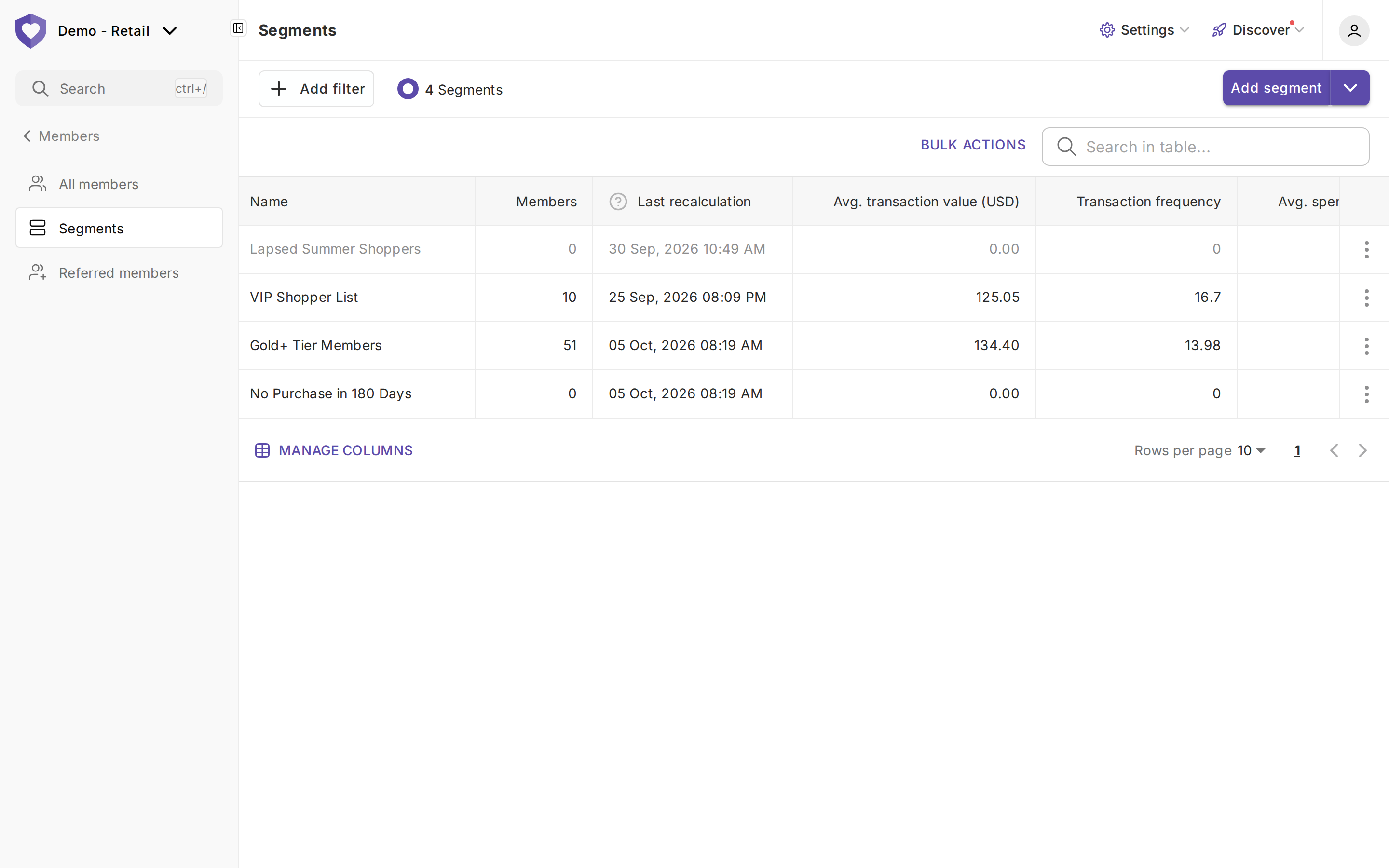
In the main-view table which contains the list of all Segments, you will find data with basic information about them.
* **Name** - Name of the Segment
* **Members** - number of added customers
* **Last recalculation** - when the Segment was last recalculated
* **Avg. transaction value** - average Transaction amount
* **Transaction frequency** - average number of Transactions
* **Avg. spending** - average spending
Inactive Segments are shown grayed out. The list also has a **Bulk actions** link, and **Add segment** is a split button.
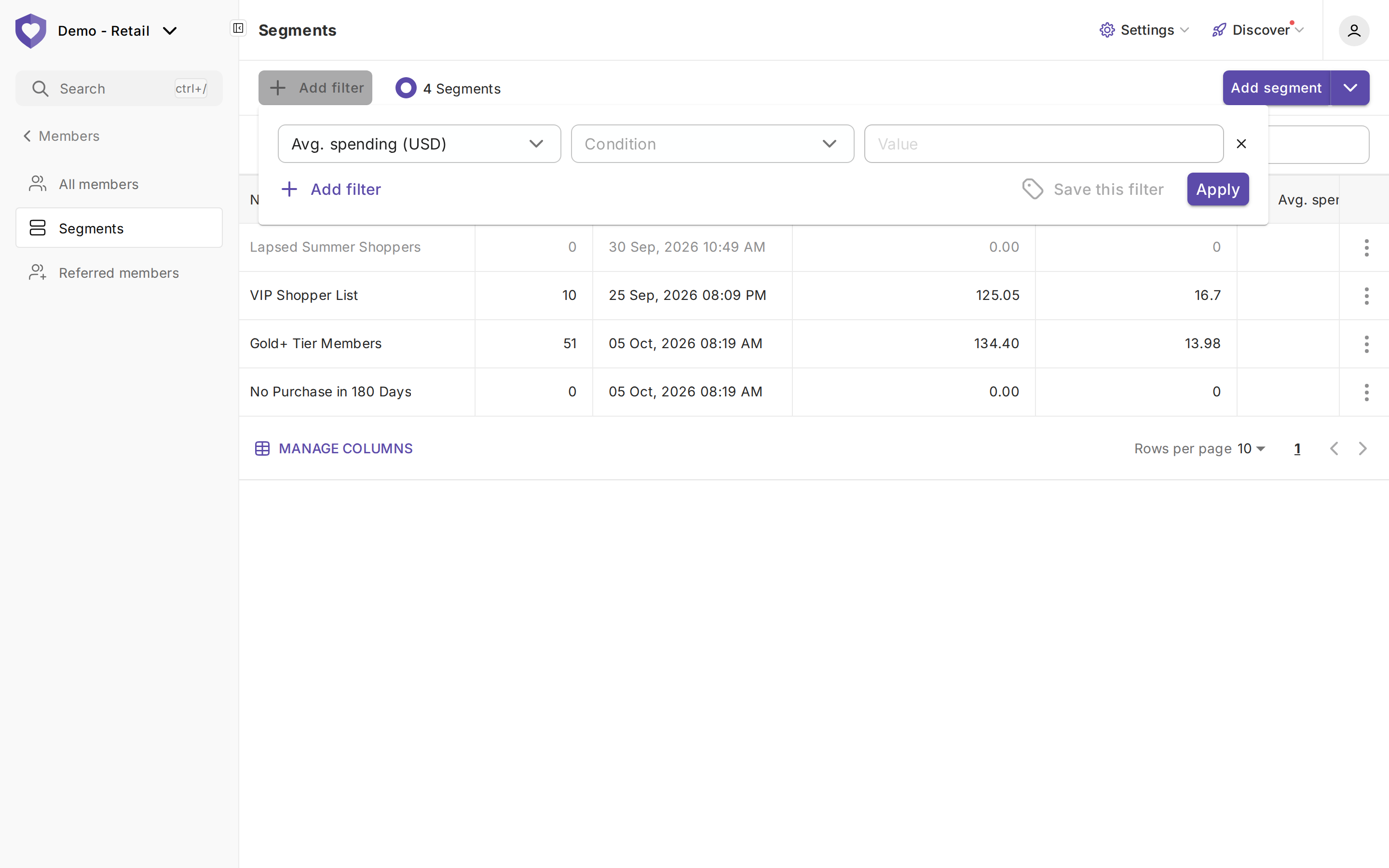
For a more detailed overview of all Segments, you can search via name and/or use filters. They will help you find the Segment which has the data you are looking for.
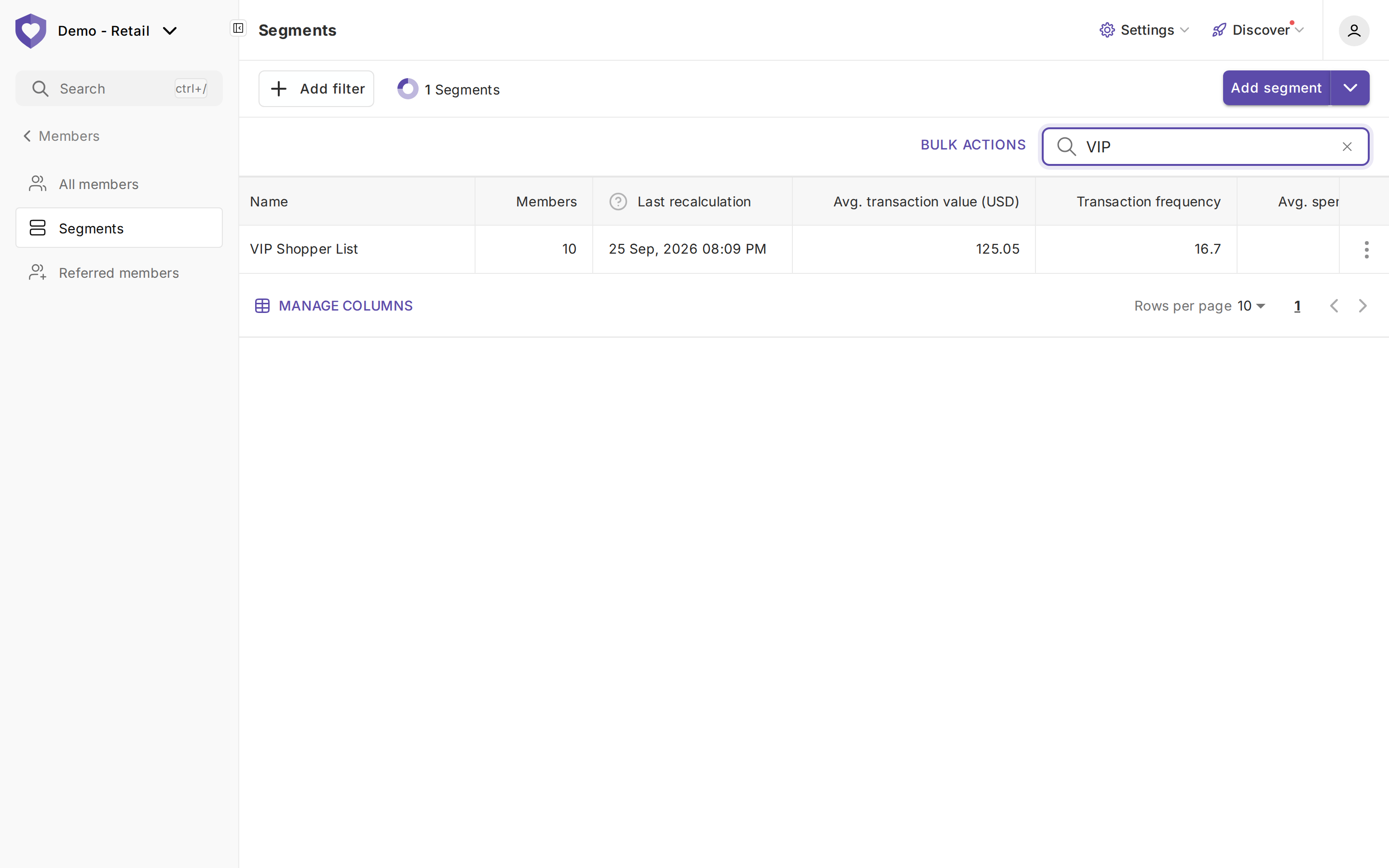
#### Table Search by name:
Once you start typing the name, the results will change automatically.
#### Filters you can use:
* Status
* Avg. spending
* Transaction frequency
* Avg. transaction value
* Created on
* Description
You can use one filter, or create and use several filters at the same time.
#### Sorting the Segment list
Sorting data is used when you (an Admin) would like to sort the Segments by specific data. This includes:
* **Name**
* **Members**
* **Avg. transaction value**
* **Avg. number of transactions**
* **Avg. CLV**
* **Created on**
#### As an Administrator, you can perform certain actions on the Segments. The actions you can take:
* Activate/deactivate segment
* Duplicate segment
* Edit segment
* Export members list
* Remove segment
{% hint style="info" %}
**Implementing this?** The Implementation Guide's [Segments](https://help.openloyalty.io/implementation-guide/module-checklists/segments) checklist covers dynamic vs static segments, using them in rules and syncing segment members to CRM through the API.
{% endhint %}
---
# Agent Instructions
This documentation is published with GitBook. GitBook is the documentation platform designed so that both humans and AI agents can read, navigate, and reason over technical content effectively. Learn more at gitbook.com.
## Querying This Documentation
If you need additional information that is not directly available in this page, you can query the documentation by asking a question.
Perform an HTTP GET request on the following URL with the `ask` and `goal` query parameters:
```
GET https://help.openloyalty.io/members-and-activity/members/segments.md?ask=&goal=
```
`ask` is the immediate question: it should be specific, self-contained, and written in natural language.
`goal` is what the user is ultimately trying to achieve, the reason they need the answer. Sharing it helps GitBook give you a better, more relevant answer. A goal is most helpful when it describes the outcome the user wants rather than restating the question. For example, with `ask=how do I create an API token`, a goal like `automate deployments from our CI pipeline` lets GitBook tailor the answer to that use case.
The response will contain a direct answer to the question and relevant excerpts and sources from the documentation.
Use this mechanism when the answer is not explicitly present in the current page, you need clarification or additional context, or you want to retrieve related documentation sections.